
To create your own internal timetable schedule, go to "Customize Timetable" section within Act 2.
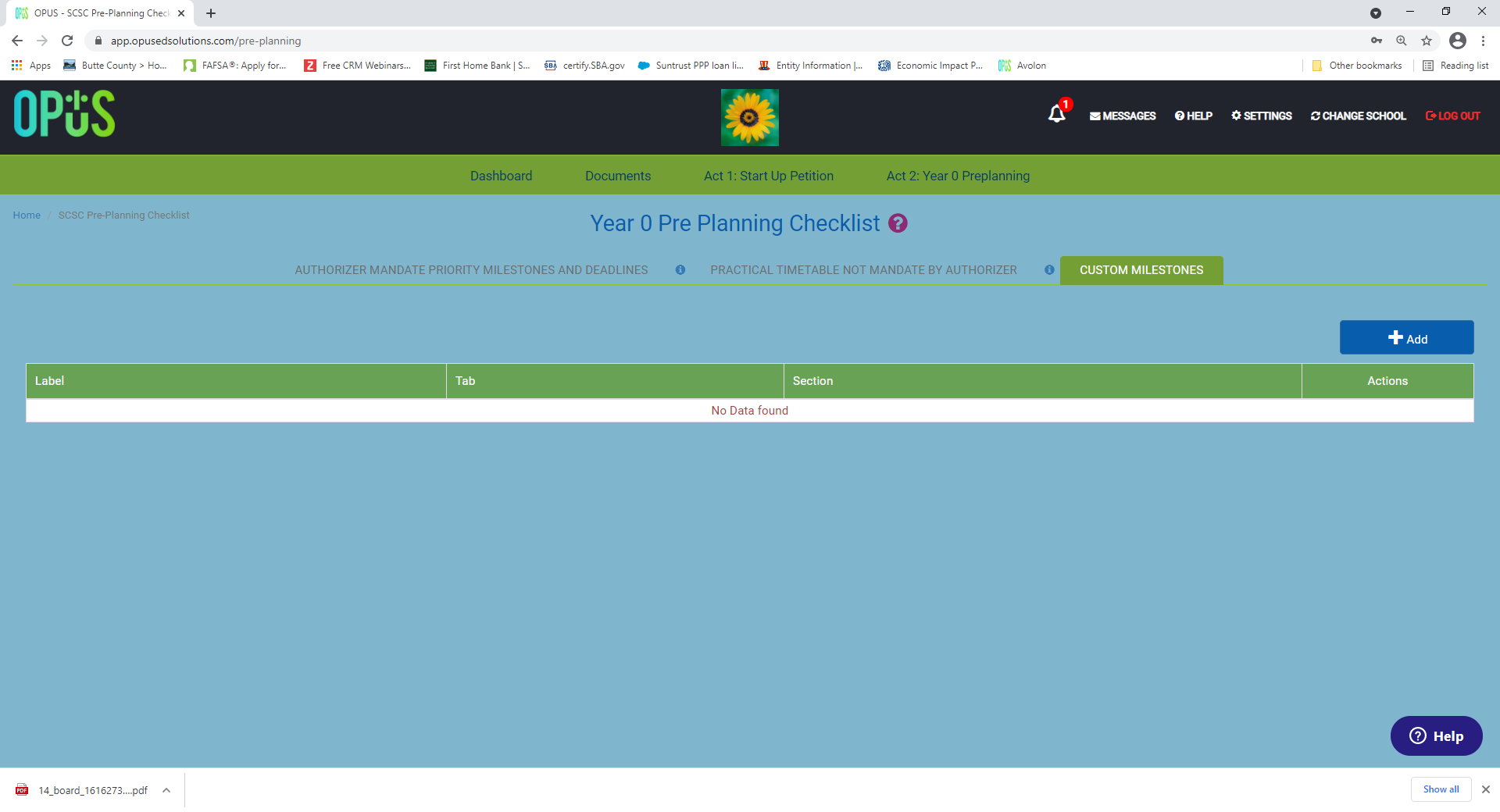
Select "+Add" to add your own schedule
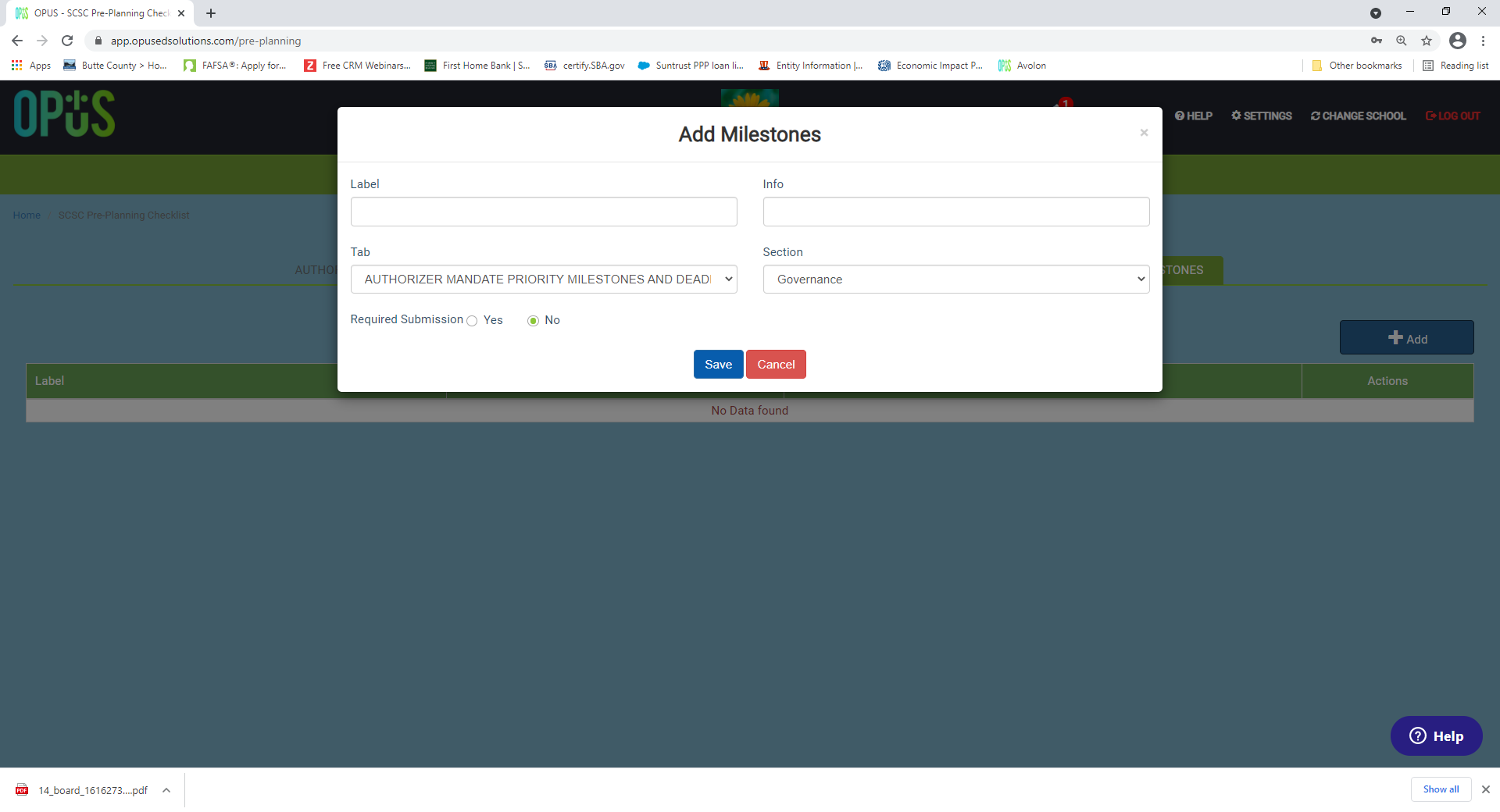
- Label: Name of your task.
- Info: Additional detail information that you want to share with your users.
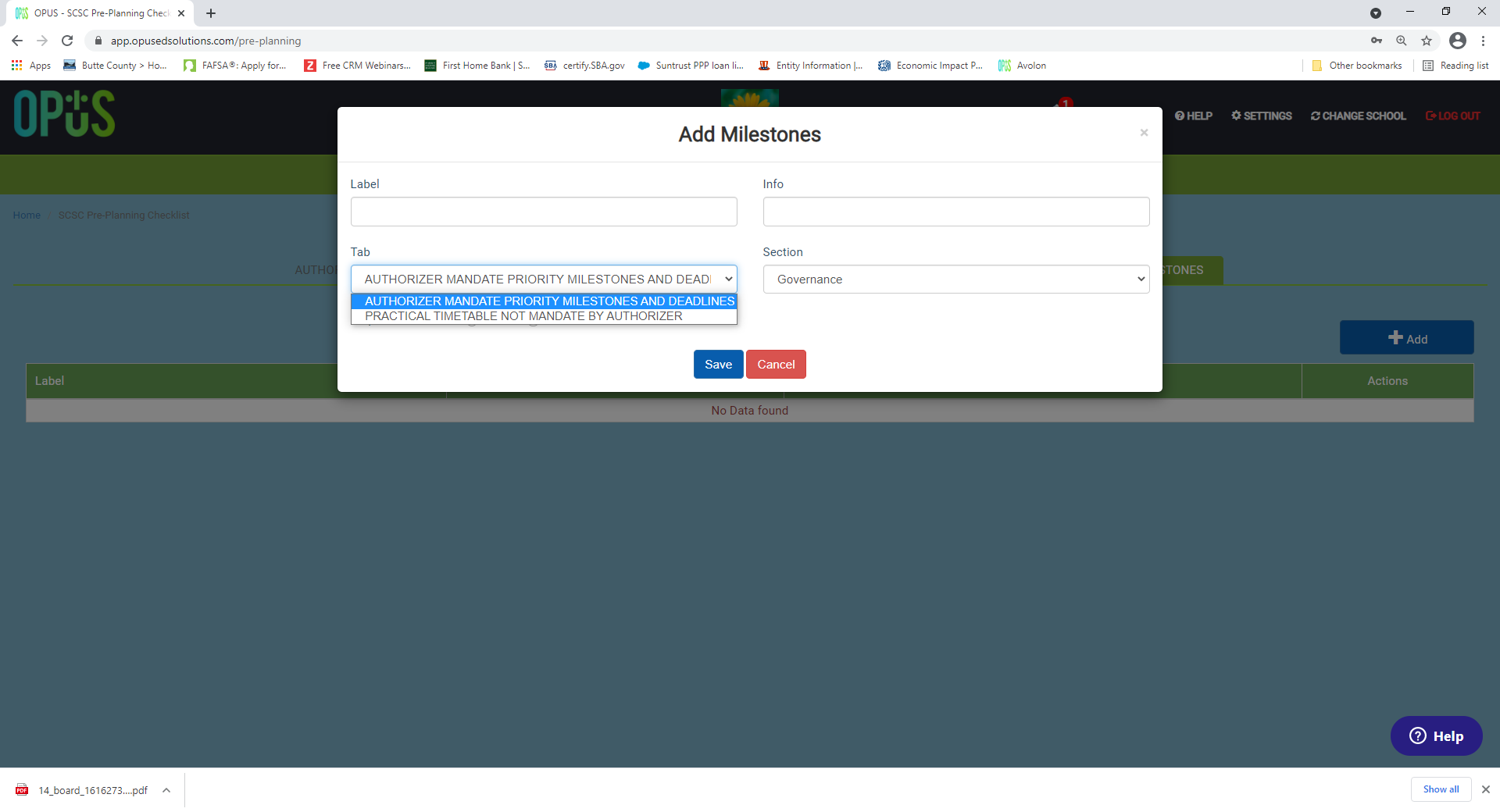
- Tab: This will allow you to choose to add this task list to either your mandate timetable or practice timetable.
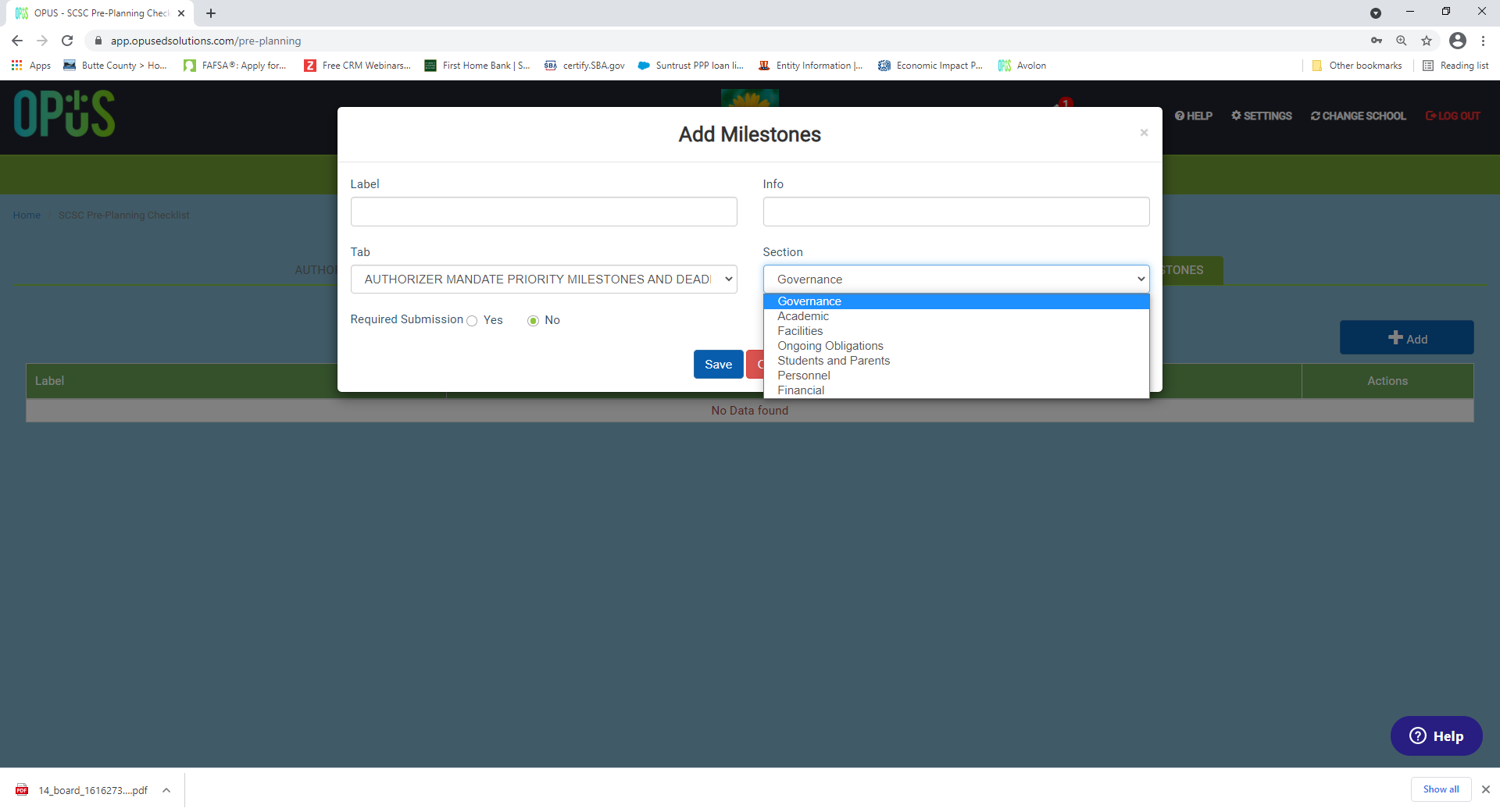
- Section: This will determine which section this task will be included in the Practice timetable.
 Required Submission: You have the choice to allow this task list to upload the documents.
 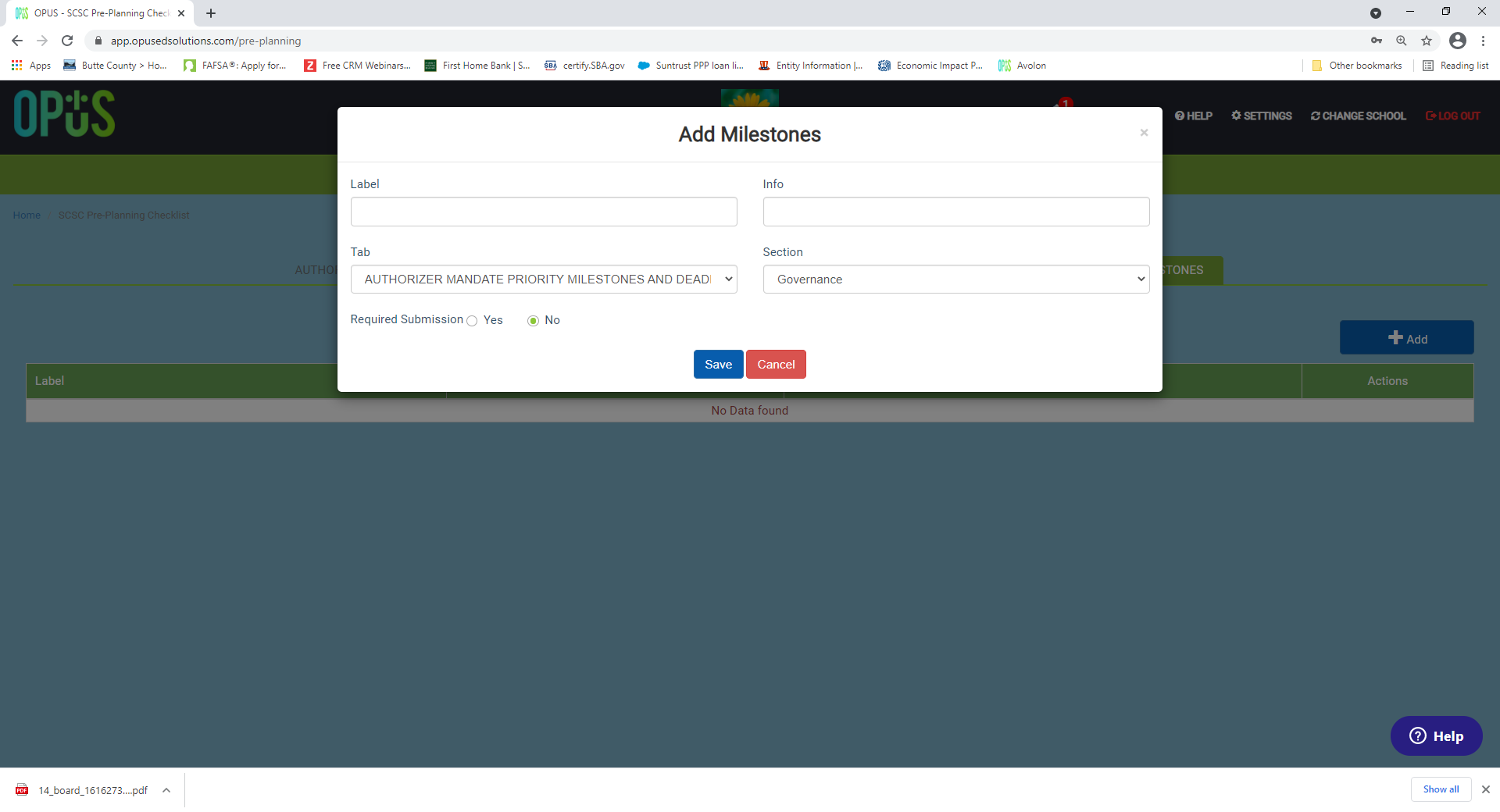 Select "Save" to update the change. Once this is done, then you will able to see this added new task list in the tab and sections that you've select.
Now you just need to enter the due date to complete.
Comments
0 comments
Article is closed for comments.